Add new column
Adds a column of the specified type to the current table and initializes it using the specified expression ( mathematical function, constants, platform object properties, and functions).
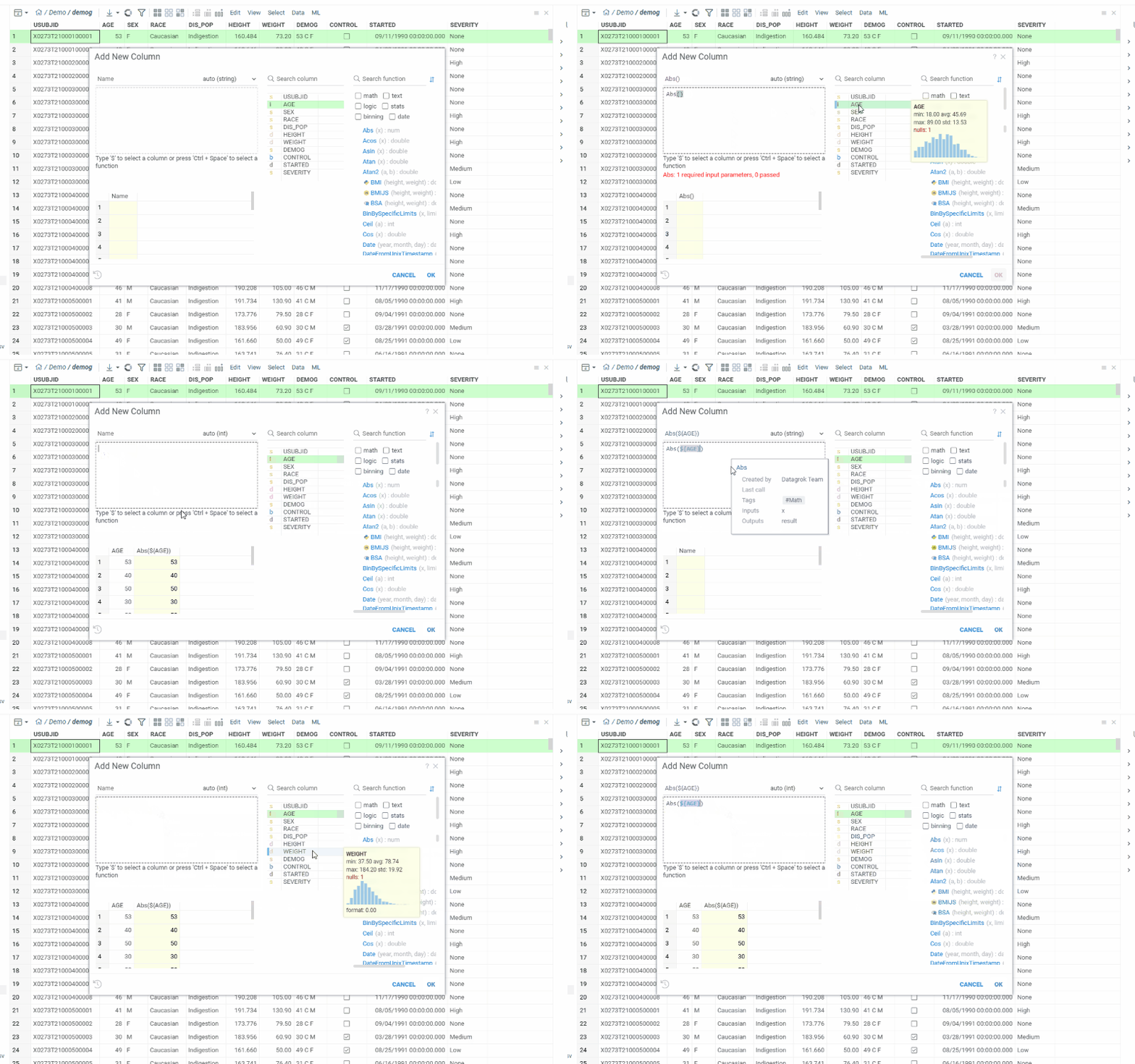
To add new columns, click on the Add New Column icon on the toolbar or go to top menu Edit -> Add New Column. Key features are:
- Support for functions implemented with Python, R, Julia, JavaScript, C++, and others. To add function to an editor, type it manually, drag and drop from
functions registry on the right or use plus icon. You can combine functions written in different languages in one formula.
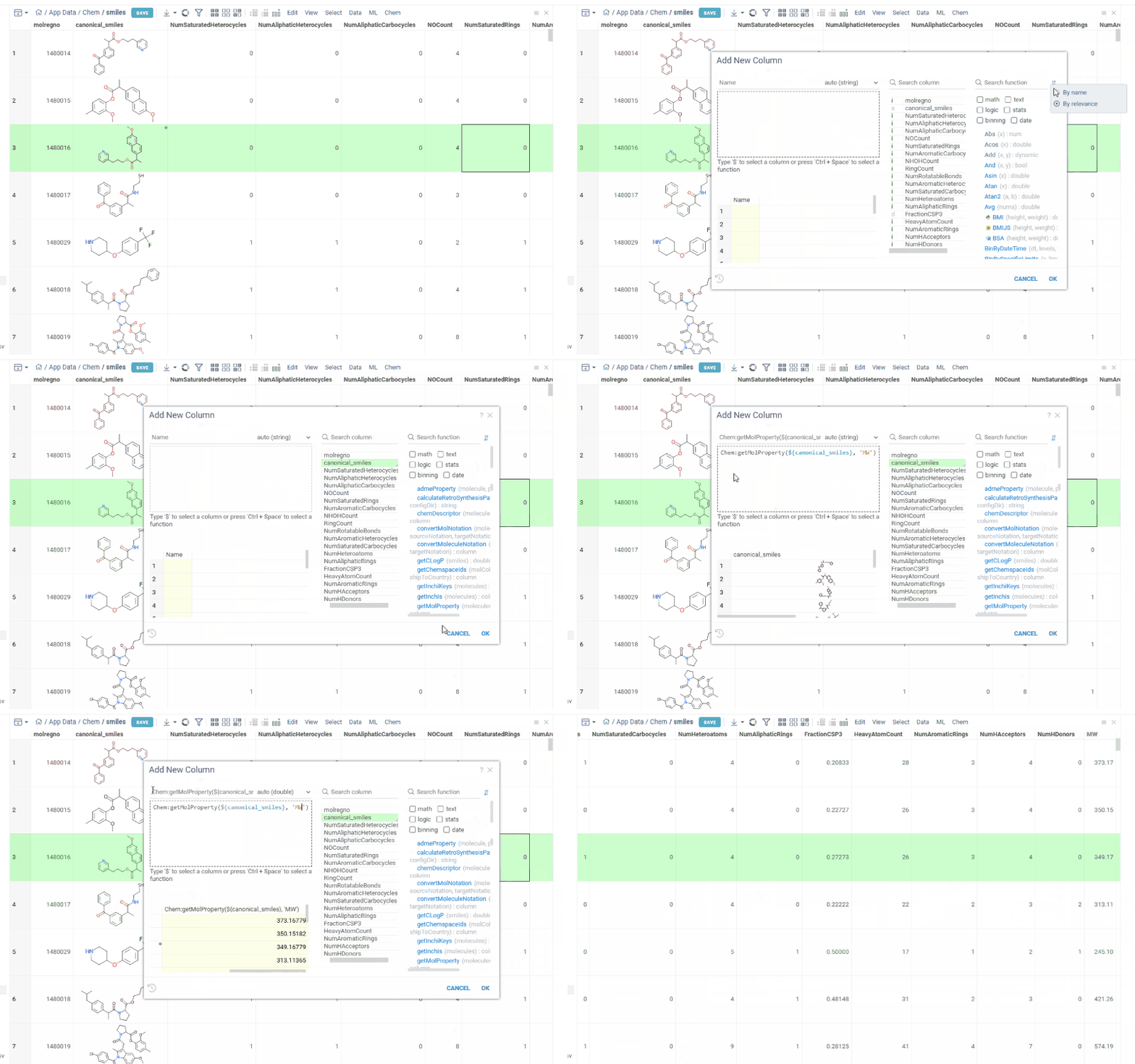
- Auto-suggested functions based on the column type and semantic type. To use:
- set functions sorting type in function registry to 'By relevance'
- select column of interest
- the functions in functions registry are sorted automatically. More relevant functions are on top of the list.
- drag and drop function to the editor field or click plus icon. Corresponding parameter is prefilled automatically with selected column.
- Interactive preview of results as you type
- Autocompletion for functions (including packages names) and columns. Suggestions appear as you type. The highlighted function shows its signature and description, and the inserted function uses its parameter names as placeholders.
- Table and column selectors. When an argument takes a table or a column, the open tables or the table's columns are offered as soon as you type the opening parenthesis or a comma.
- Help for the function under the cursor. The line below the editor shows the signature and description of the function you are in, and clicking a function name shows its details in the Context Panel.
- Different highlights within the formula for better readability. For instance, column names are highlighted in bold blue font.
- Validation against various types of mistakes including syntax errors, missing columns detection, incorrect data types, unmatching brackets.
- Resulting column type autodetection
- Fast function and column search
- History, saving and reusing formulas
Adding columns to formulas:
-
scalar functions
- To reference each row of a column, specify its name in the curly brackets, preceded by the dollar sign:
${Width}. For example you can use this expression in function like that:Round(${Width}). - To reference a whole column, specify its name in the square brackets, preceded by the dollar sign:
$[Width]. For example you can use this expression in function like that:Avg($[Width]). - To reference tables and columns by name, including other open tables, use
Table([tableName]),Column(columnName, [tableName]), andValue(columnName, [row], [tableName]). The table name defaults to the current table, and the row to the current row:Avg(Column("Width", "other table")),Table("other table").rowCount,Value("Width", 0). When you type the opening parenthesis, the dialog offers the open tables or the table's columns. See Table and column functions for lookups, running totals and moving averages.
- To reference each row of a column, specify its name in the curly brackets, preceded by the dollar sign:
-
vector function
- To reference a whole column, specify its name in the curly brackets, preceded by the dollar sign:
${molecule}. For example you can use this expression in function like that:Chem:getInchis(${molecule}).
- To reference a whole column, specify its name in the curly brackets, preceded by the dollar sign:
Tip: Some vector functions can return several related columns at once (for example, multiple chemical or statistical properties). These are called complex calculated columns.
When you use such a function in the “Add New Column” dialog, Datagrok automatically adds all resulting columns to your table and keeps them synchronized.
To add a column to a formula, drag it to the editor. Alternatively, use the keyboard:
- Open a column list popup by pressing '$'.
- Select the column you want using the up and down arrows, then press Enter.
For formulas where row index is required, row variable is available.
Example:
1.57 * RoundFloat(${Weight}, 2) / Avg($[Weight]) - log(${IC50} * PI)
To treat data as strings use quotes, for example:
"Police" + "man" // "Policeman"
The platform supports a large number of functions, constants and operators. You can find out about them in the corresponding sections of the help system:
- Binning functions
- Constants
- Conversion functions
- DateTime functions
- Math functions
- Operators
- Stats functions
- Table and column functions
- Text functions
- TimeSpan functions
How calculated columns behave
- They stay up to date. The formula is kept with the column. When a value in a column it uses changes, only the affected rows are recomputed; when a referenced column is renamed, the formula is rewritten. A formula can use other calculated columns; they are recalculated in dependency order.
- They travel with layouts and projects. Applying a layout to a table that has the same source columns re-creates the calculated columns from their formulas, in the right order. Projects keep both the values and the formula.
- The result does not depend on the table size. Built-in functions are evaluated row by row on small tables and column by column on large ones; both give the same values, types and empty cells. The column type is detected from the results unless you set it explicitly.
- Scripts run once per table. A Python, R, Julia, Octave or Node.js function in a formula runs on the server once over the whole column, not once per row, so one such call costs one round trip. Failed rows are reported the same way as for built-in functions (see below).
- Whole-column functions are computed once.
$[col]aggregates such asAvg($[Weight])and vector functions such asCumSum(${amount})are evaluated once for the column, and the rest of the formula reads their result per row.
A few things keep formulas fast: prefer built-in functions to scripts for simple arithmetic and text, guard
rows that would fail (if(IsEmpty(${x}), null, DateParse(${x}))) rather than letting every row fail,
and avoid formulas that produce a different text for almost every row when a number or a date would do.
Rows that fail
A formula can fail on some rows, for example when DateParse(${Sample Date}) meets "n/a". Such rows stay
empty. To change what happens to them, click the gear icon next to the column type:
- If a row fails: Leave empty, or Use value to fill the failed rows with a value of the column type.
- Error column: adds a string column with each failed row's message next to the result.
The gear turns blue when either is set. Then the line below the editor tells you how many preview rows failed and shows the first message, and with an error column, a warning after you click OK reports how many rows failed. Click Change... to edit the setting. The setting is saved with the column, so recalculations, layouts, and projects keep it.
From JavaScript, pass onError to addNewCalculated. {mode: 'stop'} rejects the call on the first failed row
and adds no column.
await df.columns.addNewCalculated('parsed', 'DateParse(${Sample Date})',
  {type: 'datetime', onError: {mode: 'value', value: dayjs.utc('1900-01-01'), errorColumn: true}});
Videos
See also: