Layout
In Datagrok, the visual representation of data (a layout) is separate from the data itself (a table). This separation lets you save just the layout and apply it later to a different dataset.
You can save layouts for:
- A Table View
- A specific viewer
Table View layout
A Table View layout defines the arrangement of viewers in a Table View and their properties. The layout also includes the state of the Filter Panel, so a saved layout or dashboard reopens with the same filters applied. Named filter presets are not part of the layout: they are stored in your browser. See Saving a filter configuration.
To save a Table View layout and apply it to a different dataset:
- Open a table. Add viewers, arrange them, and customize the way you want.
- Save the layout:
- In Datagrok: In Toolbox > Layouts, click SAVE. Alternatively, on the Top Menu, click View > Layout > Save to Gallery. The layout is saved on the server. You can rename the layout and add tags from its context menu in Toolbox > Layouts.
- Locally: On the Top Menu, click View > Layout > Download. The layout is saved to your local drive.
- Open another table with similar columns.
- Find the layout in Toolbox > Layouts, or on the Top Menu, click View > Layout > Open Gallery. Both options show layout suggestions for the current table and let you search for layouts by name or tag.
- To apply the layout, click the layout you saved earlier. If you downloaded the layout, drag and drop the layout file into the view.
To create a copy of your current view, on the Top Menu, click View > Layout > Clone View.
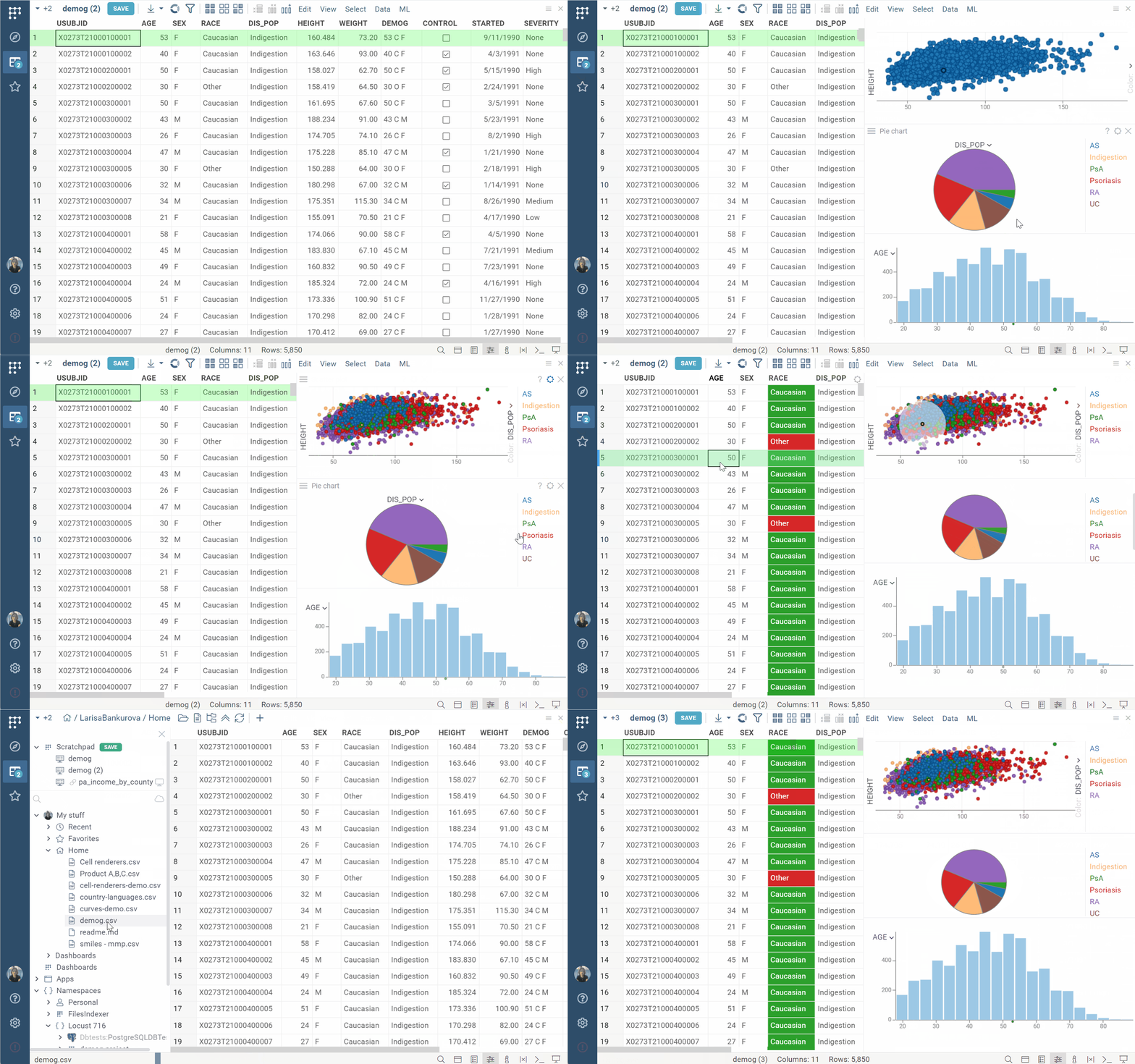
Sometimes, you want presentation-related tags (such as color coding) to be defined on a table level so that all derived Table Views will pick it up. To do this, you need to save these tags as part of the layout. When such a layout is applied, these tags are re-applied to table/column tags. Such a tag should start with "%", e.g., "%myColorCoding".
Layout suggestions
When a Table View is open, Datagrok automatically suggests relevant layouts, accessible via Toolbox > Layouts or Top Menu > View > Layout > Open Gallery.
A layout is considered relevant if its "columns of interest" match a subset of columns in the current table, based on column names and semantic types.
When saving a layout, the columns of interest are determined as follows:
- For layouts that include non-grid viewers, all data columns used in these viewers become the columns of interest.
- For layouts that include only a grid, there are no columns of interest, so these layouts are suggested for any table.
Viewer layout
Similarly to a Table View layout, you can save and reuse the settings of individual viewers. To do this, click a Hamburger icon on the viewer's header and select the command you want under General:
- Clone: Add an exact copy of this viewer to your current Table View
- Save to Gallery: Save to the layouts gallery
To apply the viewer saved earlier, find it in the gallery (Top Menu > View > Layout > Open Gallery) and double click it. This adds the viewer to the Table View.