Export logs to Amazon CloudWatch
Datagrok can send logs to Amazon CloudWatch through Log sync. The same settings also send logs to Google Cloud Logging or to any OpenTelemetry (OTLP) collector.
Datagrok sends events to each destination as they are posted. Events don't need to be saved to the database first.
Without a connection, Datagrok authenticates with the instance role and creates the log group and stream if they don't exist. With a connection, create the log group and stream in CloudWatch first.
To create a connection to AWS
A connection is optional. Without one, Datagrok authenticates with the instance role.
-
Go to Browse > Databases.
-
Right-click the AWS data source and select New connection....
-
Fill the form with the region and credentials of the IAM user that has PutLogEvents permission.
To configure Log sync
- Go to Settings > Logger and expand Log sync.
- Click Add new sync block. A new destination appears.
- Set Cloud to Amazon CloudWatch, then fill in Log Group and Stream.
- Select the Levels to sync. Optionally, narrow the events with Event type and Params, and set Batch Size and Format.
- Optionally, choose a Connection.
- Click Save and apply.
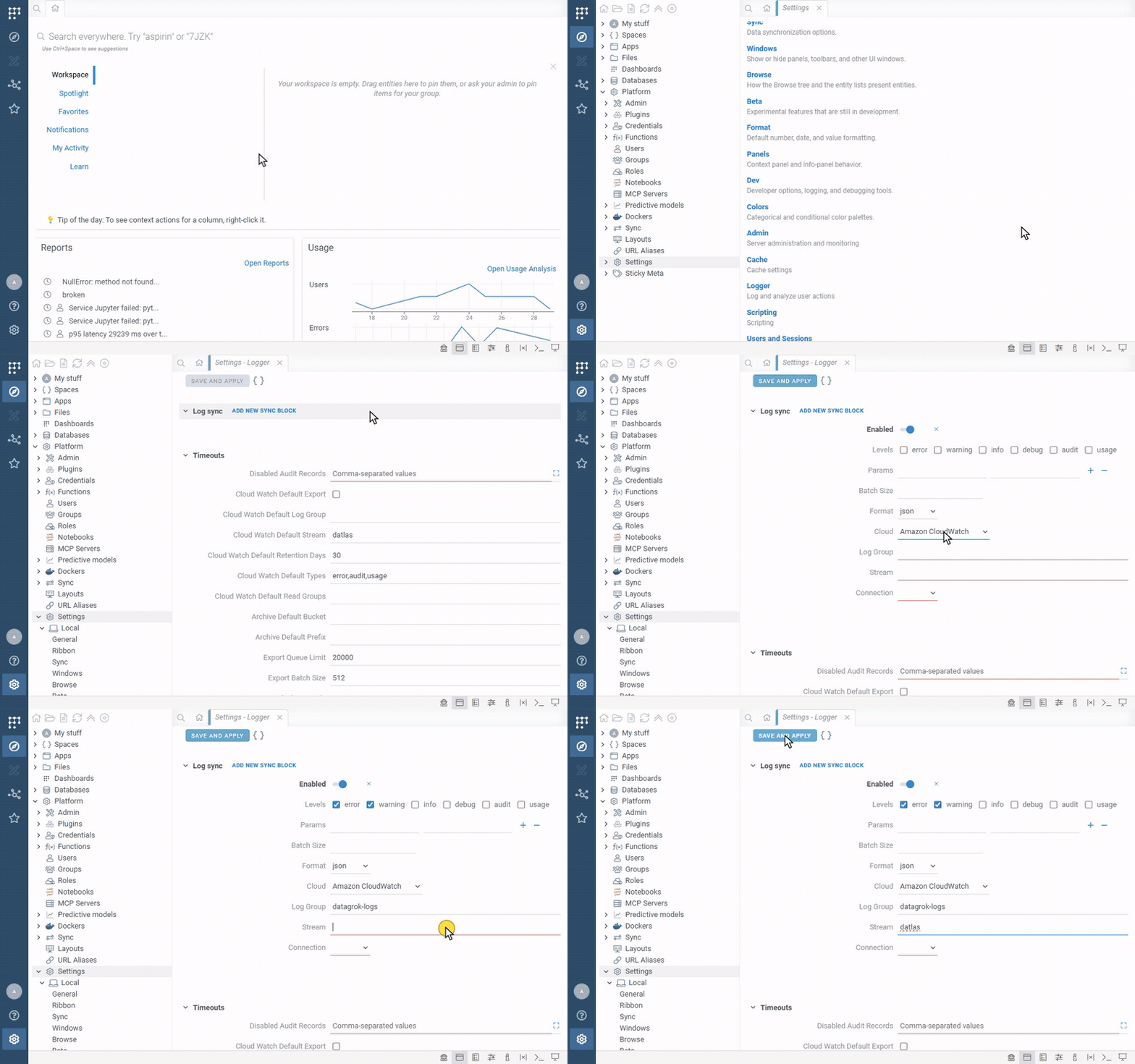
You can add several destinations to send different levels to different log groups, streams, or clouds. For Google Cloud Logging, set Log Name and a connection. For OpenTelemetry (OTLP), set Endpoint and Auth. OpenTelemetry destinations also receive alert and heartbeat records regardless of the selected levels, unless you turn off Alerts. For every setting, see Export logs.
Only posted levels can be synced. Log settings on the same page control what is posted. They apply per user or group and offer the Standard, Verbose, and Custom presets.
On a platform-managed instance, the Log sync section is hidden. The deployment owns the destinations.
To disable log sending
To pause a destination without deleting it, turn off Enabled in its block. To delete it, click Remove this destination.